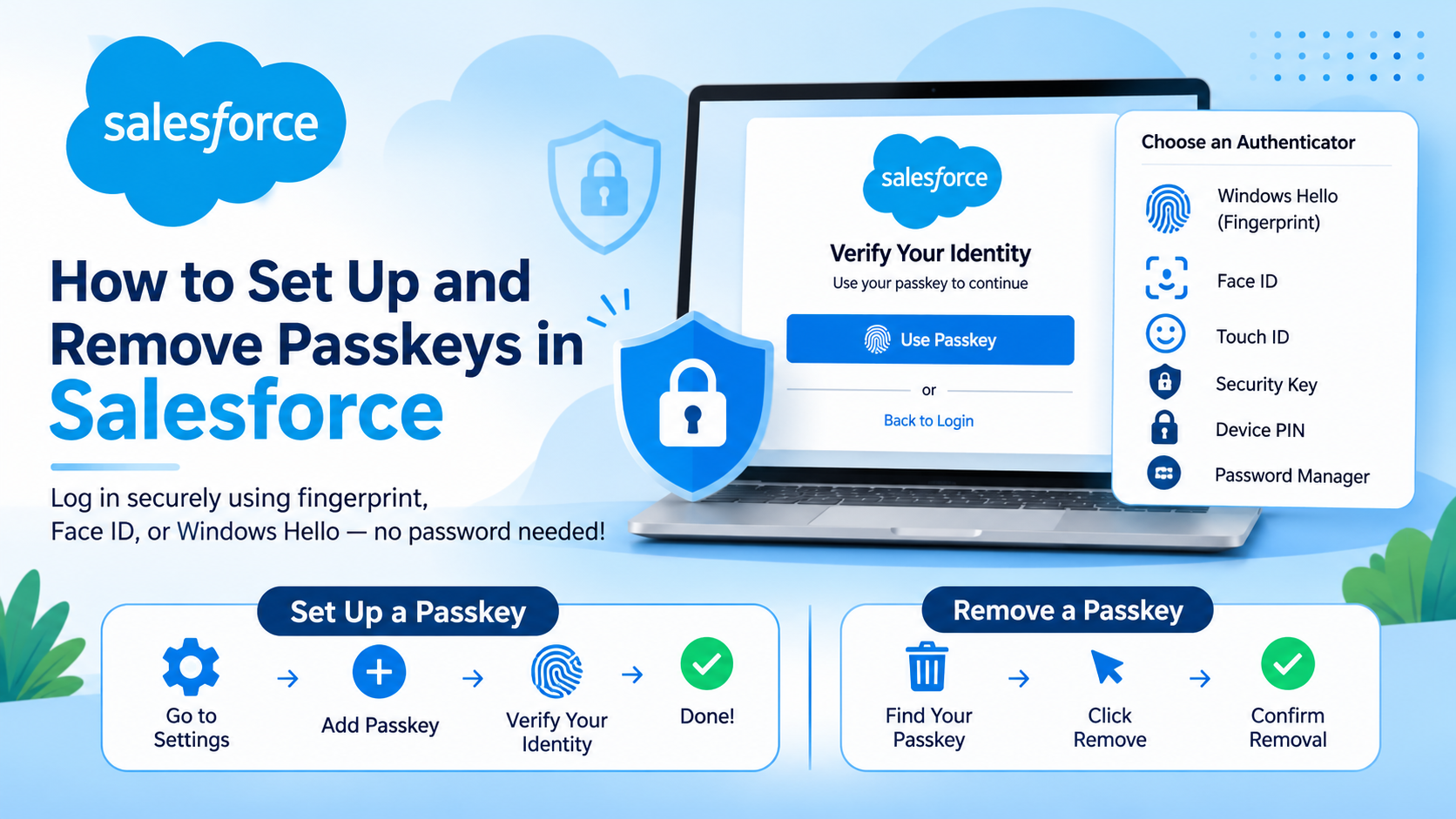
Salesforce Passkeys provide a secure and convenient way to authenticate users without relying only on traditional passwords. Users can log in using fingerprint recognition, Face ID, Windows Hello, device PINs, or supported security keys. This guide explains how to set up, manage, and remove passkeys in Salesforce, including how administrators can disconnect a user's registered passkey.
What Are Passkeys in Salesforce?
A passkey is a passwordless authentication credential based on FIDO standards. Salesforce supports passkeys as an identity verification method for multi-factor authentication (MFA).
Instead of entering an authentication code, users can verify their identity using a supported device authentication method.
Benefits of Salesforce Passkeys
- Improved security: Passkeys are designed to resist phishing.
- Easy login: Authenticate using a fingerprint, facial recognition, or device PIN.
- Convenient verification: Use a supported authenticator instead of manually entering a one-time code.
- Multiple devices: Users can register passkeys on supported devices.
Prerequisites for Setting Up Passkeys
Before registering a passkey, make sure you have:
- A valid Salesforce user account.
- A supported browser and operating system.
- A device that supports passkeys.
- Windows Hello, Face ID, Touch ID, a compatible password manager, or another supported authenticator.
- Passkey verification enabled for your Salesforce organization, where required.
How to Enable Passkeys in Salesforce
Salesforce administrators can review passkey availability in Identity Verification settings.
- Log in to Salesforce as an administrator.
- Go to Setup.
- Search for Identity Verification in Quick Find.
- Open the Identity Verification settings.
- Look for the option that allows users to verify their identity with a built-in authenticator (passkey), such as Touch ID or Windows Hello.
- Enable the option if it is available and appropriate for your org.
- Click Save.
Note: Salesforce org settings and available options can vary. Review the current Salesforce Help documentation before changing an organization-wide authentication setting. Enabling or disabling passkeys does not remove the organization's MFA requirements.
How to Set Up a Passkey in Salesforce
Users can register a passkey from their personal Salesforce settings.
- Log in to your Salesforce account.
- Click your profile icon in the top-right corner.
- Select Settings.
- Search for Passkeys or the relevant authenticator settings.
- Open the passkey management page.
- Click Add Passkey or the available registration option.
- Complete any identity verification prompt.
- Follow the browser or operating system security prompt.
- Choose the authenticator available on your device, such as Windows Hello, Touch ID, Face ID, or a compatible security key.
- Complete registration and verify that the passkey appears in your registered authenticators.
The exact labels and navigation can vary by Salesforce release and org configuration.
Common Passkey Authentication Methods
| Authentication method | Description |
|---|---|
| Windows Hello | Authenticate using a Windows PIN or fingerprint |
| Face ID | Authenticate using facial recognition on supported Apple devices |
| Touch ID | Authenticate using fingerprint recognition |
| Device PIN | Verify identity using the device's supported PIN flow |
| Security key | Authenticate using a compatible physical security key |
| Password manager | Store or synchronize passkeys through a supported password manager |
How to Remove Your Own Passkey in Salesforce
Users can remove a registered passkey from their Salesforce account settings when the option is available.
- Log in to Salesforce.
- Click your profile icon.
- Select Settings.
- Search for Passkeys or the relevant authenticator settings.
- Open the passkey management page.
- Find the passkey you want to remove.
- Select Remove, Delete, or the corresponding action shown.
- Confirm the removal if prompted.
The selected passkey will no longer be registered as an authenticator for that Salesforce account.
Before Removing Your Passkey
Make sure you have another supported way to verify your identity. Removing your only usable authenticator could prevent you from completing a future login or identity verification challenge.
How to Remove Another User's Passkey as a Salesforce Administrator
An administrator may need to disconnect a user's passkey if the user loses a device, replaces a device, or can no longer use the registered authenticator.
- Log in to Salesforce with an administrator account.
- Go to Setup.
- Search for Users in Quick Find.
- Open the user record for the person whose passkey needs to be disconnected.
- Locate the Built-in Authenticators or corresponding authenticator section.
- Find the passkey that needs to be removed.
- Click Del or the available removal action next to that authenticator.
- Confirm the action if prompted.
The selected authenticator registration will be disconnected from the user's Salesforce account.
Permissions: The administrator must have the Salesforce permissions required to manage user authenticators, such as the applicable MFA management permission. The exact permission and available controls can vary by org and Salesforce release.
Important: Removing a user's registered passkey does not turn off MFA for that user or the organization. The user may need to register another supported verification method.
Important Considerations When Managing Passkeys
- Ensure users have another available verification method before removing their only registered authenticator.
- If a device is lost or stolen, administrators should review and disconnect the associated passkey where appropriate.
- A device-bound passkey may need to be registered again when a user changes devices.
- Synchronized passkeys may be available across devices, depending on the authenticator provider.
- Removing a passkey does not disable the organization's MFA requirement.
- Test authentication changes with an appropriate user before applying broad configuration changes.
Frequently Asked Questions
Can I use a fingerprint to log in to Salesforce?
Yes. A compatible device can use fingerprint authentication through a supported built-in authenticator, such as Windows Hello or Touch ID.
Can a Salesforce Administrator remove another user's passkey?
An administrator with the required permissions can use the user's authenticator management section in Setup to disconnect a registered authenticator, where that control is available.
Can I register multiple passkeys in Salesforce?
Salesforce may allow users to register more than one supported authenticator. The available options depend on the account, org configuration, and Salesforce release.
What happens if I lose the device containing my passkey?
Contact your Salesforce administrator to review and disconnect the lost device's passkey. After you regain access, register a new passkey or another supported verification method.
Does removing a passkey disable MFA in Salesforce?
No. Removing a passkey removes that authentication credential. It does not remove the organization's MFA requirement.
Can I disable passkeys for the entire Salesforce organization?
Passkey availability is controlled through Salesforce identity verification settings, subject to the org's MFA configuration and Salesforce-enforced requirements. Review the current Salesforce documentation before changing these settings.
Conclusion
Salesforce Passkeys provide a convenient way for users to verify their identity using supported device authenticators. Users can manage their own registered passkeys through personal settings, while administrators can disconnect a user's authenticator when necessary and when they have the required permissions.
By managing passkeys carefully and keeping an alternative verification method available, organizations can support secure access without unnecessarily interrupting users.